

Audiobooks
Turn written content into studio-quality audio with an end-to-end workflow
Overview
Audiobooks provides an end-to-end workflow for turning written content into studio-quality audio.
You can paste or upload your manuscript, generate lifelike narration using ElevenLabs voices, and structure your project with chapters. Enhance your audiobook with music and sound effects, and edit and refine narration directly in the editor.
Character Casting detects characters in your manuscript, proposes a voice for each one, and lets you preview them on real dialogue from your book. When you change a character’s voice, every line they speak updates across the entire book.
Once complete, you can export your audiobook or publish it directly to listening platforms such as ElevenReader and partner marketplaces.
Audiobooks also supports dynamic narration, a mode that allows listeners to choose their preferred voice during playback.
Guide
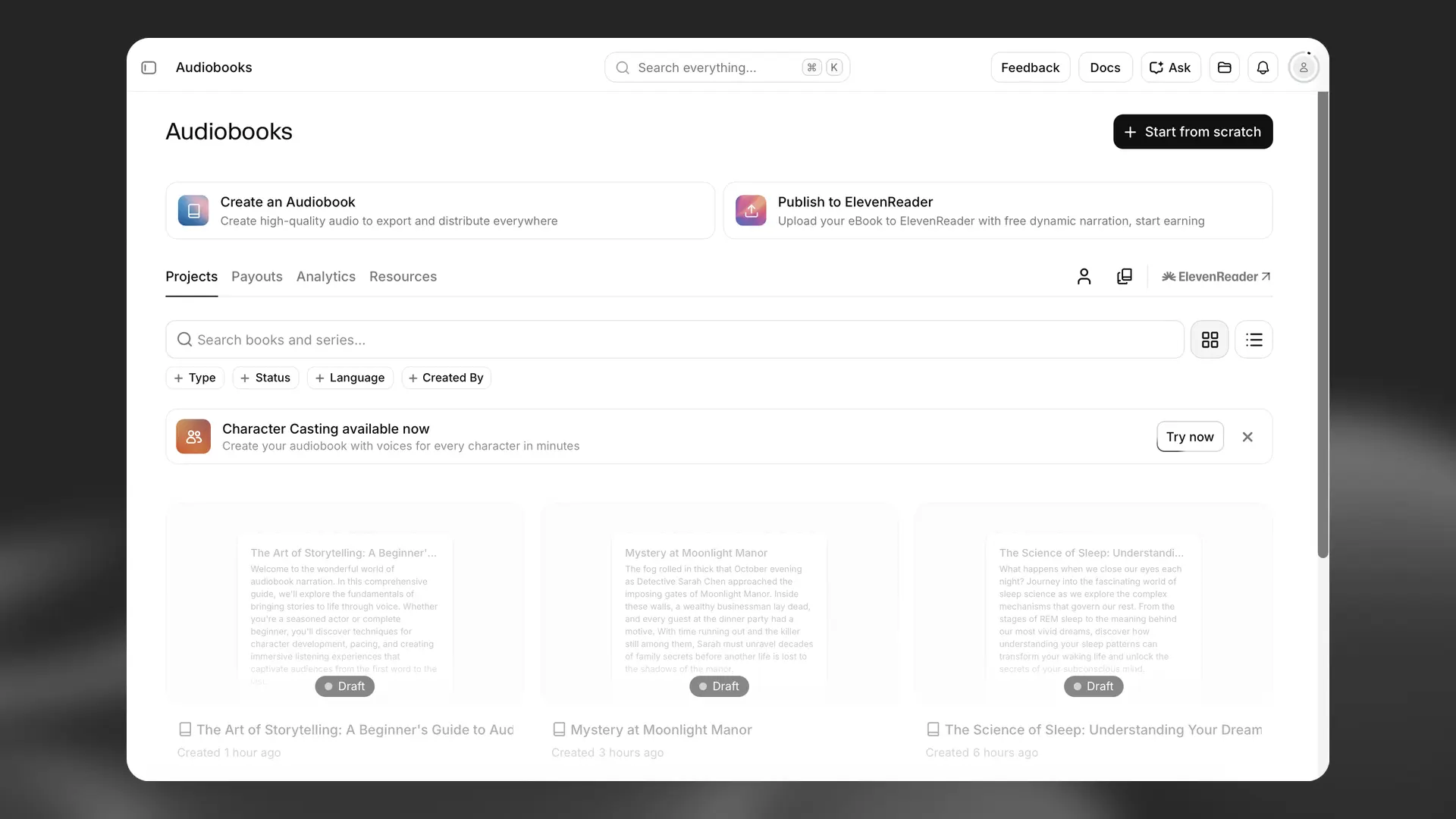
Upload your file and select base settings
Select Create an Audiobook from the Audiobooks page to start a new project.
Upload your manuscript
Drag and drop your manuscript into the upload area, or browse your device to select a file. Audiobooks currently supports:
- EPUB
Choose a narration style
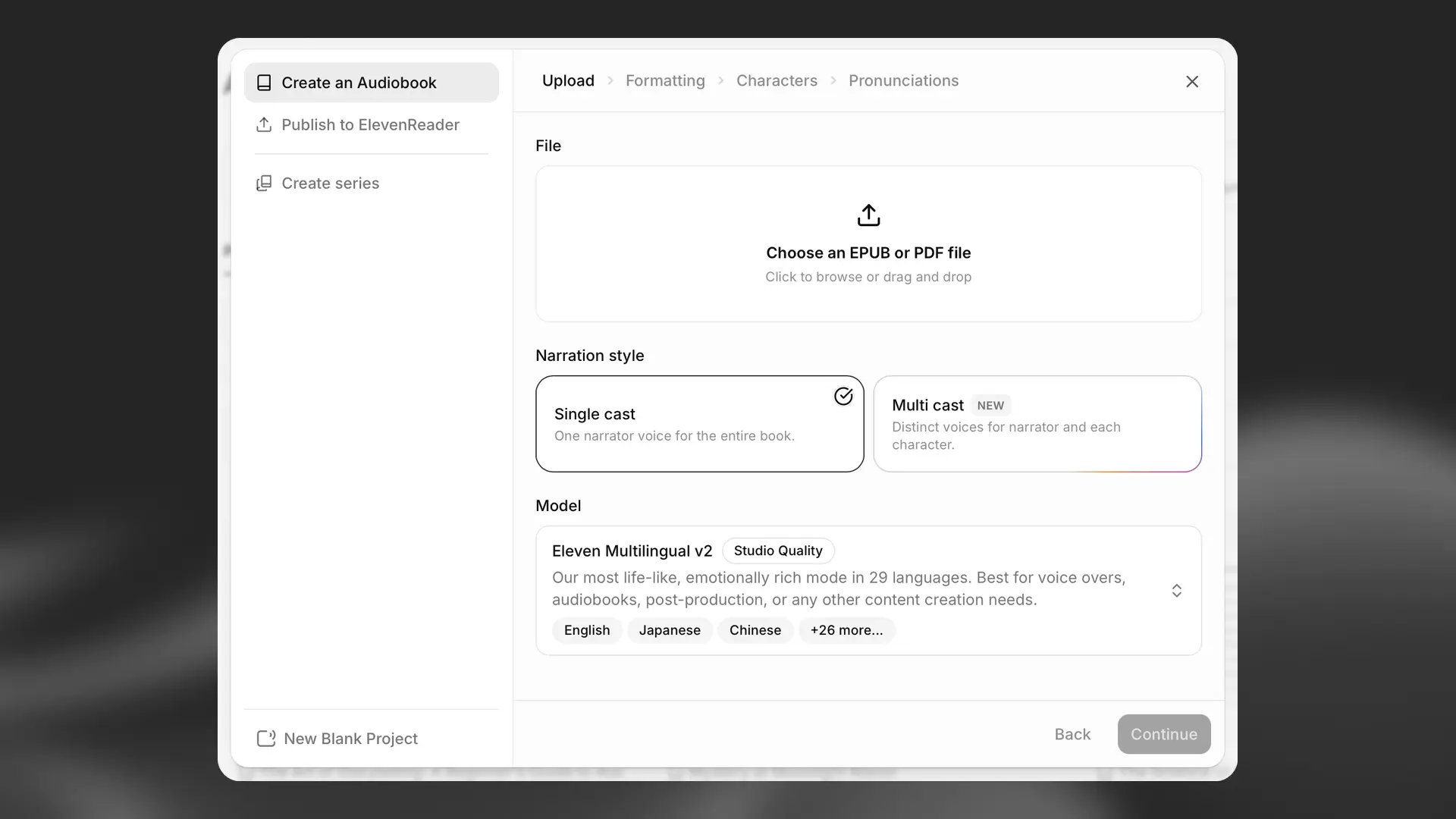
Select how you want your audiobook to be narrated:
- Single cast — One narrator voice reads the entire book
- Multi cast — A narrator and distinct voices are assigned to characters detected in the manuscript
Choose Single cast when one voice should narrate the entire book. Choose Multi cast when you want a more theatrical production with separate voices for the narrator and characters.
Select a model
Choose the AI model you want to use for your audiobook. For lifelike, emotionally rich results, Eleven Multilingual v2 (Studio Quality) is recommended for long-form voiceovers and audiobooks. It supports 29 languages.
Select Continue to begin processing your manuscript.
Parse and format your manuscript
After you select Continue, ElevenLabs automatically parses your file. The system analyzes the document to extract metadata, chapters, and formatting.
When parsing is complete, you will arrive at the Formatting screen.
Review the cover image
If your EPUB or PDF includes a cover, the system automatically extracts it and displays it as the audiobook artwork. You can:
- Replace the cover
- Remove the cover
- Keep the extracted cover
Review the detected sections
ElevenLabs identifies structural sections in your manuscript, such as:
- Copyright notices
- Dedications
- Prologues
- Chapters
- Epilogues
- Other formatted sections
Use the checkboxes to select or deselect the sections you want included in the audiobook.
Review the detected structure carefully before continuing. Manuscript formatting can vary, and the system may not always identify sections exactly as intended.
Select voices and cast characters
In the Characters step, you select the voices for your audiobook.
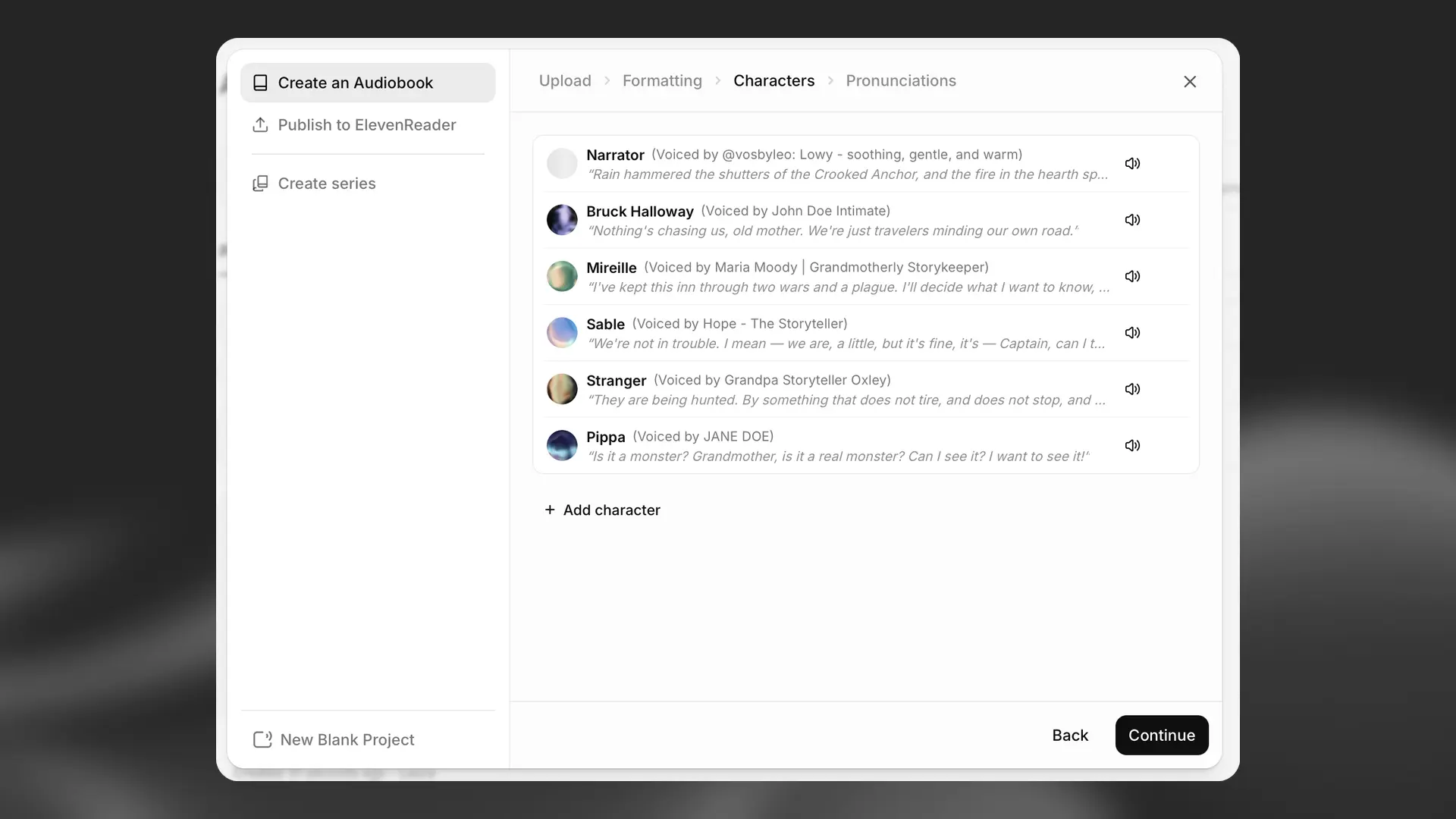
Cast a multi-cast audiobook
If you selected Multi cast, ElevenLabs analyzes your manuscript and detects characters it believes speak in the story. You can then assign a unique voice to:
- The main narrator
- Each detected character
- Other speakers identified in the manuscript
Character detection is AI-generated and should be treated as a starting point. The system may not identify every character, especially minor characters, unnamed characters, or speakers who are difficult to distinguish from the surrounding narration.
Review the detected character list and adjust the cast as needed. Add, change, or remove voice assignments so the final cast matches your manuscript.
Explore the Voice Library
Browse the available studio-quality voices, or use search and filters to find a suitable voice. Filters include:
- Language
- Accent
- Category
- Gender
- Age
You can preview voices before assigning them.
Review and add pronunciation rules
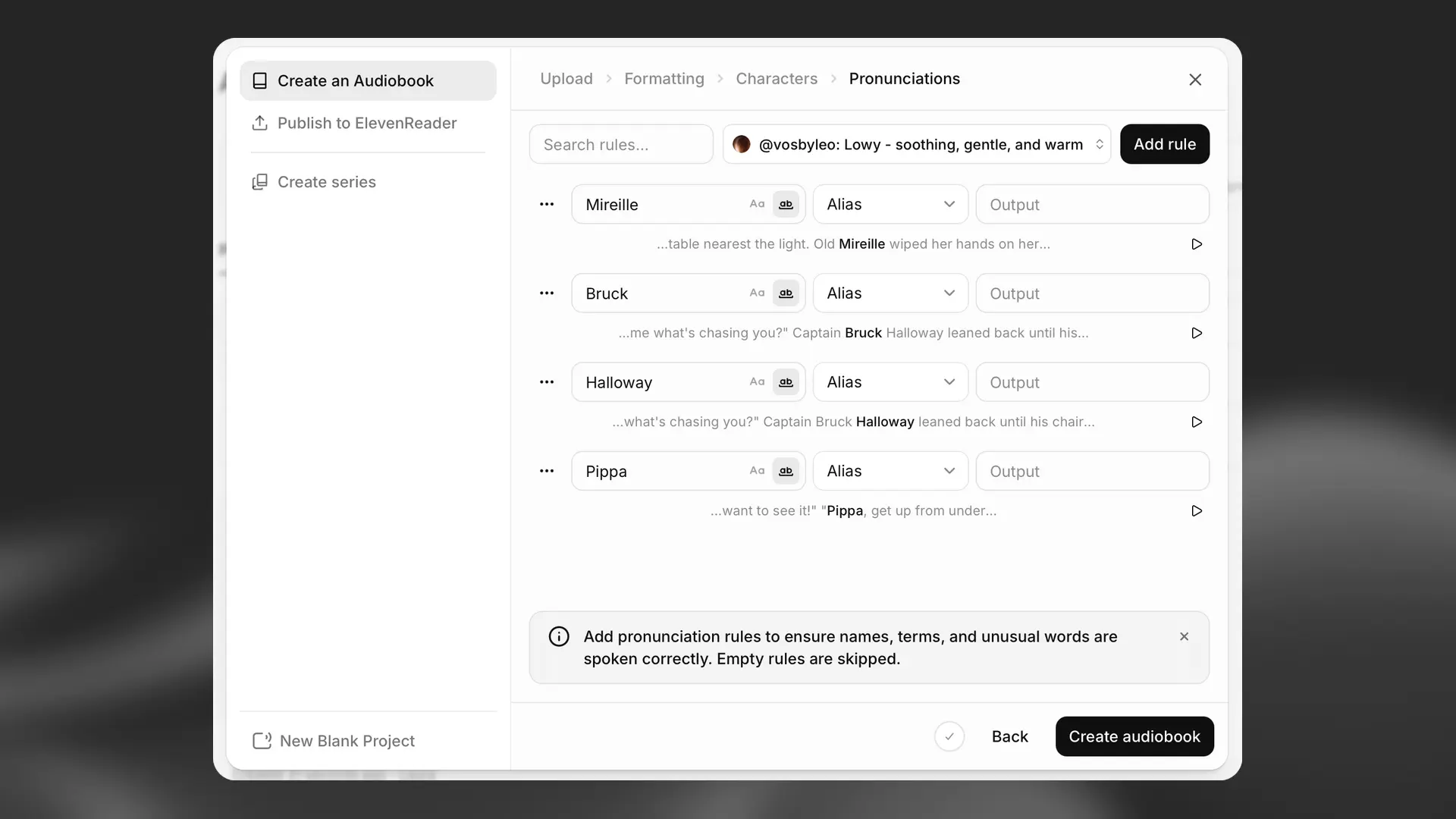
The Pronunciations step helps you control how names, places, invented words, and other unusual terms are spoken.
Review automatically detected terms
ElevenLabs scans your manuscript and suggests terms that may need pronunciation rules. These might include character names, place names, or fictional terms.
The suggestions are generated automatically, so they may not include every word that matters to your book. Review the list and add rules for any important terms that need special treatment.
Add a pronunciation rule
For each term, you can create a rule, such as an Alias, and enter the desired Output. The output tells the model how the term should sound.
You can also select Add rule in the top-right corner to manually search for a word and define its pronunciation.
Preview pronunciations in context
Select the Play icon next to a rule to hear the chosen voice read the sentence from your manuscript where the term appears.
Listening in context helps you check:
- The pronunciation
- The cadence
- The surrounding sentence
- Whether the rule works with the assigned voice
Empty rules are skipped, and the model uses its default pronunciation for those terms.
Create your audiobook
When you are satisfied with the formatting, voice casting, and pronunciation rules, select Create audiobook in the bottom-right corner.
ElevenLabs then begins creating your audiobook. After this is complete, you can manage the project, review the results, export the audio files, or publish the finished project to ElevenReader, where listeners can enjoy it.
Editing and playback
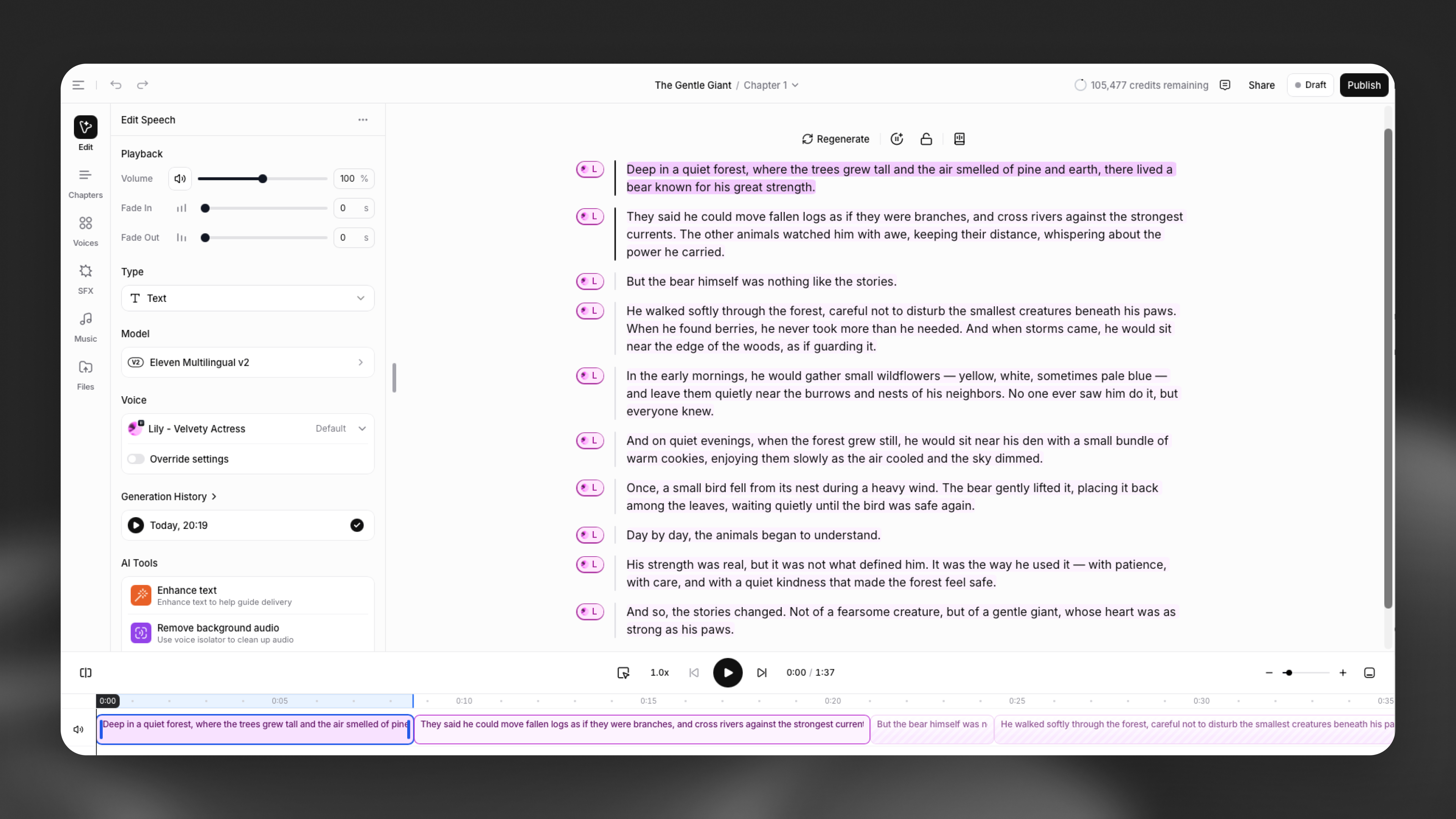
After your audiobook is created, you can refine and enhance it in the editor.
Generating and previewing narration
Once your content is added, you can generate and preview narration directly in the editor.
- Use the Play button to generate narration or play already generated audio
- Generation happens at the paragraph level within each chapter
The status of each paragraph is shown by a bar to the left of the text:
- Dark bar — narration has been generated
- Light grey bar — narration has not yet been generated
Playback modes
You can choose how playback and generation behave using the mode selector to the left of the Play button:
- Selection — plays or generates audio only for the selected paragraph
- Until end (generate one at a time) — plays from the selected paragraph to the end of the chapter, generating one paragraph at a time
- Until end (generate clips ahead) — plays from the selected paragraph to the end of the chapter, generating multiple paragraphs ahead for smoother playback
Playing already generated audio does not consume credits. Credits are only used when generating new narration.
Editing your audiobook
You can edit text, adjust voice settings, or change timing, and then regenerate specific sections as needed.
The timeline allows you to review how narration, music, and sound effects play together and make adjustments before exporting.
Enhancing your audiobook
You can enrich your audiobook with additional audio layers:
- Voices — choose or update the narration voice
- Sound effects (SFX) — add effects from the library or generate custom sounds
- Music — select from the Music Marketplace or generate new tracks
To add music or sound effects:
- Click the + icon to import them into your project
- They will appear as separate tracks on the timeline and play alongside narration
Voice and model settings
You can customize how your audiobook sounds using voice and model settings in the editor sidebar and project settings.
Voice and model selection
- Voice — selects the narrator used for your audiobook
- Model — determines speech quality, expressiveness, and supported languages
You can change these in two places:
- Editor sidebar — apply settings to selected paragraphs or sections
- Project settings — set default voice and model for the entire project
To access project-level settings, open the menu in the top-left corner and select Project settings.
Available models
ElevenLabs supports multiple speech models with different strengths:
- Eleven v4 — our latest model, with the highest quality and the broadest language support
- Eleven v3 — previous expressive model (requires more prompt control)
- Eleven Multilingual v2 — high-quality, natural narration (default for most audiobook use cases)
- Eleven Flash models — optimized for speed and lower latency
You can switch models at any time. However:
Changing the model does not update already generated audio — you will need to regenerate affected paragraphs, which will use credits.
Default settings
When creating a new audiobook:
- The default model is Eleven Multilingual v2
- The default voice is selected automatically (can be changed anytime)
- The default language is set to automatic detection
Voice settings (per selection)
When working inside the editor, you can override voice settings for specific paragraphs. Enable Override settings in the sidebar to adjust delivery without affecting the entire project
Playback controls
The contextual sidebar includes playback controls for fine-tuning narration:
- Volume — adjust loudness
- Fade in / Fade out — control how audio starts and ends
These settings apply to the selected paragraph.
AI tools
The sidebar also provides AI-powered tools to improve your audiobook:
- Enhance text — refine text to improve delivery and clarity
- Remove background audio — clean up audio using voice isolation
- Use voice changer — modify the voice in existing audio
- Direct speech with your voice — record reference audio to guide delivery (Actor Mode)
Quality and export settings
Audio quality is automatically determined by your subscription plan and project settings, and does not affect credit usage.
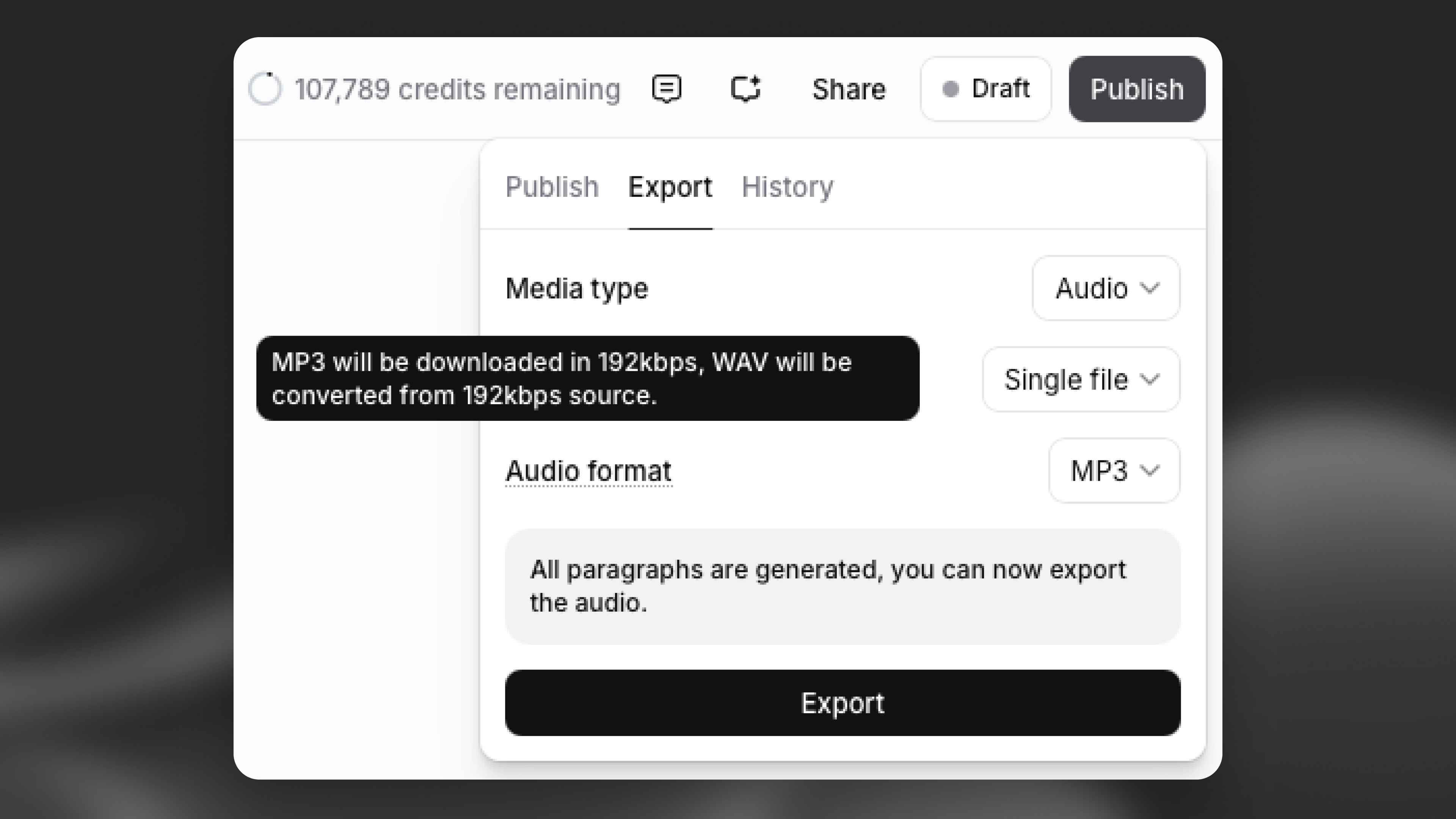
To check the exact output quality for your project, click Publish in the top-right corner, open the Export tab, and hover over the Audio format field to see details such as bitrate and sample rate.
Important behavior
If you change voice or model settings after generating audio:
- Existing paragraphs will not update automatically
- You must regenerate audio for changes to take effect, which will use credits
Contextual sidebar
The contextual sidebar updates based on what you select in your project.
For narration, it provides:
- Playback controls
- Voice and model selection
- Override settings
- Generation history
- AI tools
This allows you to adjust and refine narration at a very granular level.
Pronunciation dictionaries
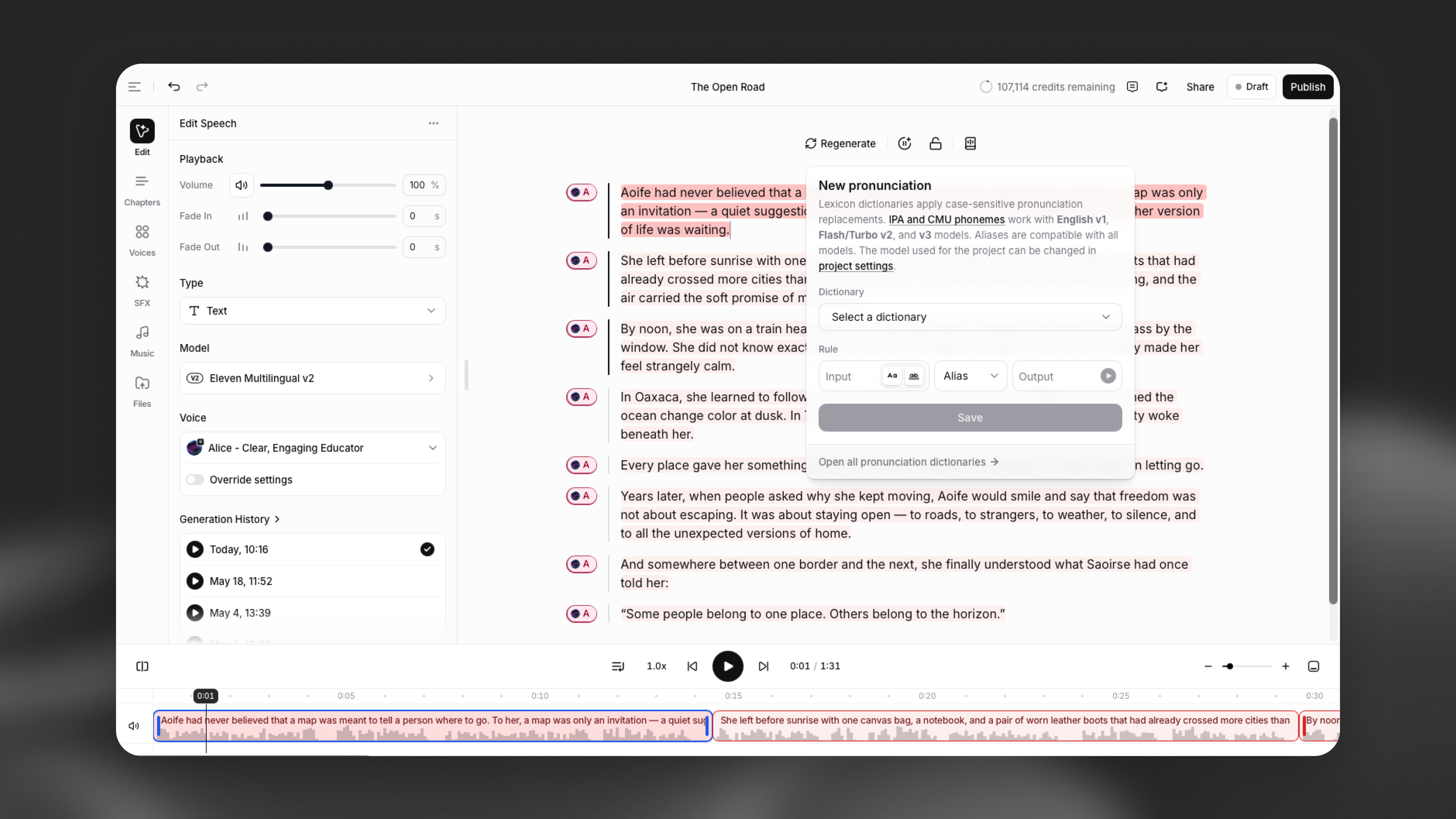
You can control how specific words are spoken using pronunciation dictionaries.
This is useful for:
- Character names
- Brand names
- Acronyms
- Uncommon or ambiguous words
Pronunciation dictionaries let you define how words should be read using:
- Phoneme rules — specify pronunciation using phonetic notation
- Aliases — replace a word with another spelling that produces the desired pronunciation
When a word in your text matches a rule in a connected dictionary, the system will use your defined pronunciation.
How to use pronunciation dictionaries
- Open the Pronunciations Editor from the toolbar
- Create a new dictionary or select an existing one
- Add entries for words you want to control
- Click Connect to apply the dictionary to your project
You can also upload a dictionary file or manage all dictionaries from the Pronunciations Editor.
Important notes
- Dictionaries are applied in order — the first matching rule is used
- Changes apply only to newly generated audio. You must regenerate paragraphs to hear updates
- Phoneme rules are only supported on English models, e.g. Flash v2
Pronunciation dictionaries are especially helpful for maintaining consistency across long audiobooks.
Character Casting
Character Casting helps you assign voices to characters in your book. When you upload a manuscript, Audiobooks detects characters, proposes a voice for each one, and lets you preview them on actual dialogue from your book.
Updating characters after generation
If you change a character’s voice after generating audio, this will clear the previous audio for that character. You will need to regenerate the audio using the new voice, which will use credits. You will be asked to confirm the change before proceeding.
Every line the character speaks updates across the entire book. You do not need to manually reassign individual paragraphs or chapters. To automatically regenerate audio for all affected paragraphs, export a new version of the audiobook. You will only be charged credits for the paragraphs that need regenerating.
Voice library
Audiobooks supports narration in 90+ languages with a library of over 10,000 voices. You can also clone your own voice in seconds if you want to narrate yourself or provide character voices.
Best practices
Review the formatting before moving forward from the parsing step. Incorrectly detected sections can affect the final audiobook.
For multi-cast projects, check every detected character and voice assignment. Pay particular attention to unnamed or minor characters, which may be harder for the system to identify correctly.
Listen to pronunciation previews in context rather than relying only on the written rule. A pronunciation that sounds correct on its own may need adjustment within a full sentence.
Review the generated audiobook before exporting or publishing it. Audiobooks can automate much of the production process, but editorial and quality checks are essential for a polished result.
Chapters
Audiobooks are structured into chapters, which can be created manually or detected automatically when importing a document.
You can:
- Add new chapters using the + button
- Rename or reorder chapters
- Generate narration per chapter
Chapters help organize longer content and make exporting more flexible.
Narration modes
Audiobooks supports two different narration approaches depending on your goals.
Original audio
Audio is generated in advance using a selected voice and remains fixed for all listeners.
This mode is best when you want full control over:
- Voice selection
- Timing and delivery
- Music and sound design
Dynamic narration
Instead of using a fixed voice, dynamic narration allows listeners to choose their preferred voice during playback.
This mode is ideal for:
- Accessibility
- Personalization
- Listener preference
Music, sound effects, and external audio are not included in dynamic narration playback.
Export and publishing
Export options
To export your audiobook, click Publish in the top right corner and open the Export tab.
Audiobooks provides flexible export options depending on how you want to use your content.
Export scope
- Full project
- Individual chapters
Media types
- Audio
- Timeline data (AAF)
- Subtitles
File structure
- Single file
- Chapter-based ZIP
Audio formats
- MP3
- WAV
If some sections are not yet generated, they will be completed automatically during export, which will use credits.
Publishing and distribution
To distribute your audiobook, click Publish in the top right corner and stay on the Publish tab.
You can publish directly to:
- ElevenReader — for in-app listening and distribution
- Partner platforms such as Spotify and InAudio
- ElevenLabs Video or Audio Native for additional formats
Publishing allows you to share your audiobook with listeners and, on supported platforms like ElevenReader, start earning from distribution.
Publishing to ElevenReader
When publishing to ElevenReader, you will go through a submission flow to prepare your audiobook for distribution.
This includes:
- Creating or selecting an author profile
- Adding book metadata (title, subtitle, cover image)
- Providing distribution details
- Setting up payouts and agreements
- Reviewing and submitting your audiobook
After submission, your audiobook will be reviewed before becoming available in the ElevenReader app.
Organizing your audiobooks with series
You can group multiple audiobooks into a series to organize related content and improve discoverability.
To create a series:
- Go to your Bookshelf
- Click the Create series button (top-right)
- Enter:
- Series name
- Description
- Author profile
- Language
- Optionally add existing books to the series
- Click Create Series